Apps & watchfaces, from your watch
WristShelf
Find your next Pebble app from your wrist.
For Pebble watches. Your paired phone keeps the shelf connected.
Meet your next favorite
A little shelf.
Plenty to discover.
Browse recent apps and watchfaces from the Pebble and Rebble stores, search for something specific, and see how it looks before adding it to your library. WristShelf runs on your watch, with your paired phone providing the internet connection.
Recent arrivals
Explore newly published apps and faces from either store, or bring both catalogs together.
Search your way
Speak a name on a microphone-equipped watch, or use the on-watch keyboard.
Take a closer look
Open full-screen screenshots, read the description, and check the maker before choosing an app.
Keep it simple
Switch between apps and faces in Explore. A short control hint appears each time WristShelf opens.
On the watch
Find it. Take a closer look.
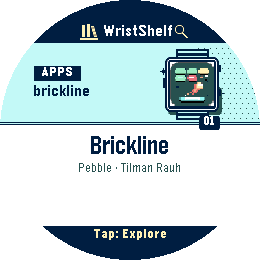
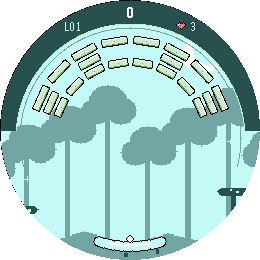
Brickline
Find the listing in WristShelf, then open a full-screen preview of the game.
Pinky
Browse the result in WristShelf and see the app’s own screenshot before adding it.
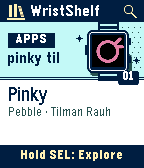

Actual WristShelf 1.1.0 emulator captures. Featured apps: Brickline and Pinky, both by Tilman Rauh.
A quick start
Start in four steps.
No store login is needed to browse. Keep your paired phone online.
Install WristShelf
Open the Pebble App Store listing on your paired phone and install WristShelf.
Choose your stores
Open WristShelf settings in the Pebble phone app. Select Pebble, Rebble, or both, then tap Save settings.
Find something
Launch WristShelf for Recent. Hold Select on the catalog to open Explore, switch between apps and faces, or search.
Open the listing
View Previews or Description. If the listing says Install via phone, choose it, reopen WristShelf settings, and tap Open in Pebble.
Optional account linking
Add from your watch.
Connect the matching store account to use Add to My Apps or Add to My Faces. When WristShelf reports success, the listing is saved to your account library; your phone handles delivery to the watch.
Some additions require permission review in the phone app.
Connect a Pebble account
- Tap Connect Pebble in WristShelf settings and open the sign-in link in your phone browser. Use the same account as the phone app.
- If settings close, reopen them. After browser approval, return and tap Finish linking.
- If Close settings appears, tap it and reopen settings to check for Connected.
Return to settings to check for Connected even if the browser reports a local-address error.
Connect a Rebble account
- Sign in at boot.rebble.io on your phone. Press and hold Switch to Rebble and copy its link.
- Paste it into WristShelf’s Private setup link field, tap Connect Rebble, then reopen settings.
- Enable the same Rebble account in your phone app. Pull to refresh My Apps or My Faces if needed.
Keep the setup link private: it contains account credentials.
Store sources & syncing
WristShelf’s selected stores and the phone app’s Appstore Sources are separate settings. Enable the matching store source and connect the same account in the phone app so additions can sync.
Make yourself at home
Buttons or touch.
- Up / Down
- Browse.
- Select
- Open the selected item.
- Back
- Return to the previous screen.
- Hold Select
- Open Explore from the catalog.
With touch enabled on Pebble Time 2 or Pebble Round 2, swipe to browse, tap a card to open it, and swipe sideways through previews. Buttons remain available.
Across the family
Made for Pebble.
- Pebble & Steel
- Time & Time Steel
- Time Round
- Pebble 2
- Pebble 2 Duo
- Time 2
- Round 2
Voice search needs a microphone and working dictation. Catalog listings depend on watch compatibility. Brickline supports Time 2 and Round 2. Pinky is shown here on Pebble Time and is unavailable on the original Pebble and Steel.